Two years on the Glove80: a split ergonomic, programmable keyboard as a programmer ⌨️
 Glove80, both halves on desk
Table of Contents
Why I switched #
For roughly three years I used the Logitech Ergo K860. Despite liking it, I kept getting RSI (Repetitive Strain Injury) flare‑ups—pain and discomfort from repetitive typing motions. ~2 years ago I discovered that split ergonomic keyboards were a thing and went down the rabbit hole. I switched to the Glove80 in January 2024. Before I bought anything, I started watching videos from the channel If Coding Were Natural and from Ben Vallack. I read many reviews and first‑hand experiences. The more I watched and read, the more my interest in split ergonomic keyboards grew. Overwhelmingly, people seemed to praise the Glove80 for its comfort, so I decided to try it. I considered many alternatives like the Moonlander and Ergodox but chose the Glove80 for its lighter switches and curved key wells.
Before the Glove80, I had flirted with mechanical keyboards because the community is huge and very into them. Given the nerd that I am, I got nerd‑sniped by the mechanical‑keyboard scene. I assumed I would be into mechanical keyboards. In April 2019, I ordered a 60% board, the Anne Pro 2. After trying it, I returned it because it wasn’t an improvement for me and the reduced ergonomics weren’t worth it compared to the Logitech. The mechanical switches didn’t really excite me in practice as much as I had expected. What I actually needed was a split, columnar layout with thumb clusters and programmability. I didn’t know this yet.
Split ergonomic keyboards: What makes them different? #
Before diving into my experience, here’s what sets these keyboards apart from traditional ones.
Columnar layout #
Columns line up under each finger, so most movements are up/down instead of sideways. Compared to row‑staggered boards, this reduces lateral finger travel and awkward cross‑overs. Row‑staggered boards offset keys sideways, which encourages lateral travel rather than straight motions.
Vertical column‑stagger #
Each column is offset to match finger length, which reduces awkward reaches for ring and pinky fingers and keeps wrists more neutral. The middle finger column sits higher, the pinky column lower—matching the natural length differences between fingers.
Split halves #
Two halves let shoulders and wrists stay in a neutral, shoulder‑width posture. One‑piece boards tend to pull shoulders inward and bend wrists sideways (called ulnar deviation). With the split, I can position each half independently for my body.
Key wells #
Curved wells bring keycaps closer to your finger pads along natural arcs, so you extend and lift your fingers less. Flat boards make you lift and extend fingers more and move farther between rows. The Glove80’s wells are subtle but noticeable after hours of typing.
Thumb clusters #
Modifiers, Backspace, Enter, and other frequent keys can live under your strongest digits—the thumbs—instead of overloading pinkies. Big space bars under‑utilize thumbs and push more work to pinkies and corners. On the Glove80, my thumbs handle multiple keys that would normally require pinky reaches.
Tenting #
Tenting means raising one side of the keyboard to adjust the angle. I tent the halves to a mild angle so my forearms don’t have to twist as much (less pronation) and my wrists stay more neutral. Most standard keyboards cannot tent at all, which forces your palms completely flat and pulls your shoulders inward.
Switches #
I use Kailh Choc Red Pro switches on my Glove80. They are linear with a low actuation force, which feels light and comfortable for long typing. I don’t have much experience with other switches, so this is not a comparison—just what works for me.
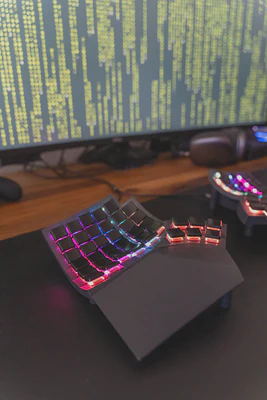
Taken together, these differences mean less strain and more consistent typing for me than on row‑staggered boards.
The first month: Comfort vs. disruption #
After spending a month on the Glove80, I found it much more comfortable than expected. At the same time, it completely disrupted my typing strategy—what I had learned on a traditional layout didn’t transfer to the columnar layout of the Glove80.
What was frustrating #
In the first couple of days, my typing speed tanked and it was extremely frustrating. On the first day, I was at 22 wpm—slower than hunt-and-peck typing. I was constantly looking at the keyboard, trying to use the right fingers for the right keys. On a traditional keyboard I had my own strategy—basically three fingers per hand—and I was actually very fast with it. But that didn’t transfer at all to the columnar layout; using the “right” finger for each column felt natural once learned, but it wasn’t native to me at first. I did not want to give up and kept going despite the massive frustration. Maybe what kept me going was the sunk‑cost fallacy of $400 (which is mid-range for split ergonomic keyboards, they typically run 200-600 USD).
Practice tools that helped #
I started with Keybr to learn key‑by‑key. Once I finished that, I switched to using MonkeyType exclusively. After 1–2 months I had already reached ~85 wpm (words per minute—average typing speed is 40 wpm, programmers often type 60-80 wpm). I haven’t improved a whole lot since then, but I also haven’t done dedicated typing practice. While writing this post I tried MonkeyType again and I’m now ~90 wpm.
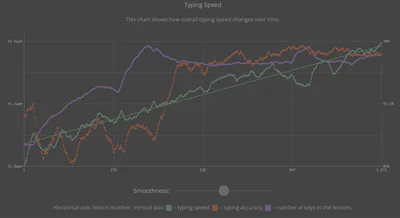
Beyond the tools, a few things helped with the transition: the Glove80’s columnar layout actually forces you to use the correct finger for each column—using the wrong finger feels completely unnatural and awkward, so I had to abandon my old three-finger strategy. I also had to accept the short-term speed dip while accuracy improved, and adding slight tenting helped keep my wrists more neutral.
Today, it feels completely natural for me to type on this keyboard.
Programmable features that make a difference #
These keyboards let you program behaviors that eliminate awkward reaches and repetitive strain. Here’s what I actually use:
Mod-tap: One key, two functions #
Keys do different things based on tap vs. hold. All my symbols work this way:
- Tap
1= “1”, hold for ~200ms = “!” - Tap
,= “,”, hold = “<” - Tap
.= “.”, hold = “>”
This keeps everything on the home row without reaching to a symbols row.
Sticky modifiers: Tap instead of hold #
All my modifiers are “sticky”—tap them once and they latch for the next key:
- Tap
Command+Shift, then tapT= reopens last tab - No more finger gymnastics holding three keys at once
With a single thumb movement on my left hand, I can reopen a tab quickly.
Layers: Multiple keyboards in one #
Multiple virtual keymaps on one keyboard. You can momentarily switch or toggle to a layer to get different keys under the same physical switches. Common patterns include a symbols layer, a navigation layer, and a numbers/function layer—all reachable from home row.
The “hyper” key shortcut #
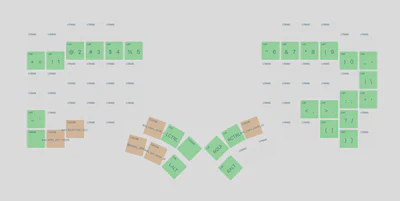
If I hold the Home key, it acts as if I’m pressing Ctrl + Alt + Shift + Command simultaneously (the “hyper” key I mentioned earlier).
Since few apps use that combo by default, I map it to custom commands:
Home+T→ open TerminalHome+B→ open BrowserHome+C→ open CalendarHome+S→ open Slack
This hyper key setup enabled my keyboard-first workflow across macOS (using Keyboard Maestro) and Linux (using Hyprland). The same muscle memory works across both systems, relieving me from tapping Command+Tab like a mad person.
More programmable tricks I use (details)
Double‑tap
Shift→ emulate mouse behavior on keyboard- A quick double‑tap of
Shifttoggles my mouse behavior layer so I can move/scroll/click without leaving the home row.
- A quick double‑tap of
Double‑tap
Command→ macOS‑style word navigation on Linux- I use this to mirror macOS word‑jump behavior in Linux editors/terminals, so
⌘+ arrows behaves the same everywhere.
- I use this to mirror macOS word‑jump behavior in Linux editors/terminals, so
Combos for common keys
E+D→Enter;R+F→Space. This lets me press Enter and Space with my left hand while my right hand is on the mouse, since those keys sit on the right side on many layouts. I also keep most app‑switch launchers on the left side so my left hand can trigger them while my right hand stays on the mouse.
Shift + Backspace → Delete
- Backspace morphs into Delete when Shift is held—handy on macOS/Linux.
Tap dance to momentary vs. toggle a layer
- Single tap for a momentary “Lower,” double tap to lock it on; keeps symbols/nav nearby without mode churn.
Mouse keys with speed profiles
- Separate slow/fast/warp cursor and scroll speeds for precision vs. movement.
Delete to start/end of line
- One chord deletes left to line start; another deletes right to line end—great for editors.
Tuning for fewer misfires
- Tap‑preferred hold‑taps and a ~200–220 ms tapping term match my timing.
None of this requires you to become a firmware expert on day one. Even a couple of well‑chosen mod‑taps, one sticky key, and a single “symbols + navigation” layer can remove a lot of awkward reaches.
What I’d tell my past self #
- Expect an initial drop in speed; it’s normal.
- Columnar layouts reward correct finger usage; looking down at first is fine.
- Start simple: one or two mod‑taps, one sticky modifier, one extra layer.
- Practice compounds. MonkeyType and Keybr were enough for me.
- Don’t let sunk‑cost thinking scare you into quitting, but also don’t over‑engineer your layout on day one.
- You won’t lose the ability to type on normal keyboards. When I type on my laptop’s built‑in keyboard, I just use my original three-finger strategy and have no issues. It’s like developing two different muscle memories based on the keyboard.
- Gaming consideration: WASD sits off the natural columns on a columnar split. I briefly tried a shooter and it felt awkward—unless you’re willing to reprogram and relearn gaming muscle memory, FPS games don’t work well. I only played Factorio on it, which worked fine.
Where I am now #
As of November 2025, I’m ~90 wpm, and it feels completely natural to type on the Glove80. I reached 85 wpm within 1–2 months and have mostly stayed in that range since, with a small bump recently. The comfort gains are real, and the programmability (mod‑tap, sticky keys, and layers) turned out to be as exciting in practice as it sounded when I first discovered it. Was the $400 worth it? Absolutely! I probably spent many thousands of hours on it so far, so amortizing it over its lifetime, it’s well worth it for me. Plus it makes me feel like a leet hacker.
My current Glove80 layout: view it here.
What’s next? #
The Glove80 perfectly meets my needs—I have no practical reason to switch. But the nerd inside me is curious about other options in the split keyboard ecosystem. The Corne, Svalboard, and Cyboard Imprint all take quite different approaches and seem interesting to explore. Whether I’ll actually try them or stick with what works is an open question—sometimes the best keyboard is the one you’ve already mastered.
Community and support #
The MoErgo Glove80 community is extremely welcoming. Stephen, the designer, is very active and responsive—when I requested a small feature for the layout editor, it went live within a day.